Tuesday, January 12, 2010

Sherriffs are Slooooow

Managed to get stuck behind an El Paso County Sherriff on the way up The Pass tonight. He insisted on going the limit. You better believe that three and a half seconds after we hit the county line, I was in the left lane, and my speedometer read 80mph. Teller Boys, Represent!

Wednesday, December 30, 2009

UFOs

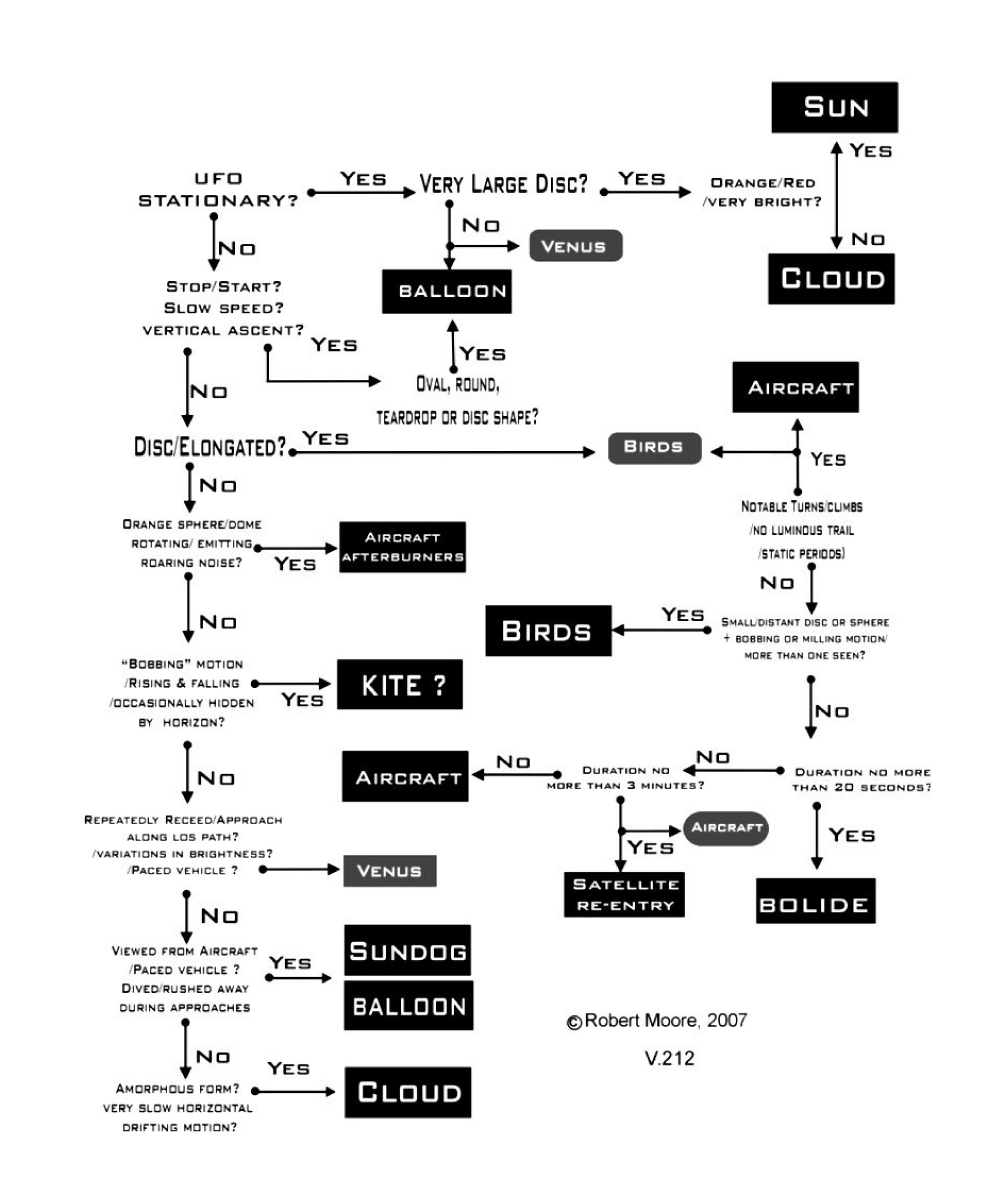
A new website for amateur and professional astronomers to (possibly) report UFOs has an interesting flow-chart for identifying unknown daytime phenomena: Is this UFO the Sun?
(click to see full version)

via Phil Plait

Wednesday, May 27, 2009

Things I can do at work

I can:

  • use Twitter
  • Write a blog post
  • Read Google Reader
  • Do something with Facebook (I'm not sure what goes on over there)

I can not:

  • Check my gmail
  • Install the things I need to do my actual job

Wednesday, May 13, 2009

How to Fail at Web 2.0: Alienate the Geeks

Today, Twitter made the biggest mistake it could make: removing their user’s freedom to choose. Now, I’m not saying they didn’t think it through—they blogged about it exactly one year ago, so they spent an entire year thinking about how it would effect their user base.

This isn’t just about discovering new people: I’ve told many of my friends on several occasions that some of the most interesting this I have to say are in reply to somebody else. I think this applies to most people: rarely do I find it interesting when people are talking to themselves—and almost never do I actually learn something about them.

The community response to this whole thing has been overwhelming: as of this writing, #fixreplies is the hottest trending topic. Followed closely by #twitterfail and "Goodbye People I Never Knew" (which was the title of a blog post about it). So overwhelming, in fact, that Twitter updated their blog post to include some smarmy “you’ll still see mentions” crap.

They seem to think that a #followfriday-style recommendation was “just as good” as replies—but, what is a better recommendation: them conversing with someone because they truly are interesting, or them telling you somebody is interesting? I tend to think the former.

Now, I understand: something like 97% of Twitter users never changed the default setting (the one that's now thrust upon all of us). The people who did change it, however, are the ones that Twitter owes the most to: the power users. These are the early adopters—the geeks—the people who told their friends “hey, have you checked out this Twitter thing? No? Here, let me set you up an account.” These are the people who drove the current media storm into a frenzy. They used to use Twitter to discover new, interesting people, and that was part of why it was successful. But now? They are pissed.

When your core business revolves around communication, you should just stand back, and let people communicate.

P.S. In the time it took me to write this, there were 2400 #fixreplies tweets.

Monday, April 27, 2009

Twitter Lexicon: A Proposal


As I use Twitter more, I find myself trying to referencing it in new ways. Most of them are simple, and many other people have already started using—but some things just don’t come up often.

Glossary

Twitter [twi-ter] (n): A microblogging service. “I use Twitter.”

twitter[twi-ter] (v): To use Twitter. “I’m going to twitter that.”

twittering[twi-ter-ing] (v, present): Using Twitter. “There are a lot of people twittering this.”

twittered[twi-turd] (v, past): Previously used Twitter. “I twittered about that.”

twit [t-wit] (n): A person who uses Twitter. “I am a twit.”

tweep [t-weap] (n): A person you know on Twitter. “My tweep @LtWorf and I are going to the store.”

tweeple [t-we-ple] (n, plural): A group of people on Twitter. “Some tweeple just don’t get it.”

tweet [t-weat] (n): A post on Twitter. “Did you read that tweet?”

tweet [tw-‘et] (v): To post on Twitter. “I’m so going to tweet this.”

tweeting [tw-‘et-ing] (v, present): Currently posting on Twitter. “Hold on, I’m tweeting what you just said.”

twate [tw-‘at] (v, past): Having posted on Twitter in the past. “I twate about that an hour ago.”

twaten [tw-‘at-n] (adj): Has been twate. “That has been twaten to death.”

twote [t-w’ot] (v): To quote something from Twitter. “@StephenColbert just twote @biz on-air”

twoted [t-w’ot] (v, past): Quoted something from Twitter. “Earlier, @StephenColbert twoted @biz on-air”

Regarding “Twate”

I spent many hours thinking about what form the past simple and past participle forms of “tweet” should take, and I had a couple other candidates:

“twote”/”twitten,” from “wrote”/”written;” but it sounds like a portmanteau of “twitter” and “quote,” which made it into the lexicon on its own.

“twang”/”twung,” from “sang”/”sung” — Just doesn’t sound right at all.

“twaid” from “said;” but could be mistaken for a portmanteau of “twitter” and “paid.”

Eventually, I settled on “twate,” using “eat” as a conjugation template, and arrived at the tweet/twate/tweeten.

Friday, April 3, 2009

Switching Google Accounts: Change of Email Address

One of the easiest parts of changing your email address to get wrong is notifying your friends, family, co-workers, and anyone else you might need to receive email from. I’ve gone through 12 of these in my life, and I feel that I’m getting fairly good at it.

Setting a Deadline

In the past I have failed to set a deadline, with disastrous results. Without one, many people can and will procrastinate updating their contact list. I’m nearly sure that, somebody I know is still sending email to an account I abandoned 8 years ago, because I failed to set a deadline. It doesn’t have to be a hard deadline: you don’t have to stop reading your old email account as soon as it passes — in fact, you’d be wise to continue checking it for a month or two, incase you missed somebody.

I set a deadline 3 days away from when I sent the email, and had at least 90% of my buddies switched over by the end of the first day — the remaining 10% were people I have no other contact with except through email, so I’ll have to wait for them to email me next time to see. You may need to set the deadline further down the road than I did — most of my contacts are obsessive email addicts, so I knew a large portion of them would check their email in that time-frame.

Choosing Who You Want to Notify

Be sure to focus on family, friends and co-workers when sending your notifications. It is recommended that you do not send notifications to mailing lists, unless you are a very important member — perhaps you can put a notice in your signature for a couple months, if you feel its really important that they know who the “new” guy is.

The Notification Message

Be sure to be polite, courteous, and to the point. For your contacts, this message is all about doing maintenance on their contact list, something very few of them will really want to do, so don’t make them read anything that has nothing to do with the purpose of the message. Be sure to put that you’re changing your account in the subject line, and get to the details very early in the body of the message. Here’s an abridged template based on what I send:

From: {Old Address}
To: {New Address}
Bcc: {All Contacts}
Subject: I'm changing my email address, so please update your contact list - {Name}

To All Recipients:

On {Deadline}, my current email address, {Old Address}, will be abandoned. I will be permanently changing over to my new account, {New Address}, which you may or may not already have — please update your contact list, if necessary.

Thanks and regards,
{Name}

Do note the “From,” “To” and “Bcc” lines — these are set that way for a reason. You want to send the email from your old address, incase somebody has their account setup to mark anything from somebody not on their contact list as spam. “To” and “Bcc” are there so each recipient can see exactly two addresses on the email: theirs, and your new one — you want that new address to stick in their mind as much as possible until they get it into their contact list.

You may also wish to include a small note as to why you are switching, to head off the “why?” questions. Personally, I referenced the vast amount of spam I was receiving, and that some of their messages had been mistakenly sent to my Spam box months or weeks ago.

If you have any other accounts tied directly to an email address, this is a perfect opportunity to remind people to switch those as well. For instance: I included a reminder note to those that were on my Talk or Reader buddy lists to update those as well.

Switching Google Accounts: GMail

The process of importing your old email can take a long time. For me it ran for about three days, at a rate of about 200 messages every five minutes. I’ve put it up-front here because you can probably do all the other switchover's while it runs.

Copying Your Filters

If you’re like me, you’ve created a whole ton of filters to automatically label incoming messages from mailing lists, etc. — if you want all of the email you import from your old account to have these same labels, you’ll need to first copy over your filters before starting the import. This is a bit more involved, since the tool that allows you to export/import them is currently relegated to the realm of GMail Labs. On the Labs Settings page, find the one called “Filter import/export,” and enable it (be sure to scroll down to “Save” the settings).

With this lab enabled, you will find some new things at the bottom of the filters settings page: an “Export” button, and an “Import filters” link. To export, select all of the filters using the “Select All” link just above the Export button, and then click that button. When importing, it gives the option to not import certain filters, but I’ve been fairly good at deleting filters that no longer make sense (say, when I unsubscribe from something), so I just scrolled past it, and clicked the “Create filters” button.

Setting Your Old Account to Provide POP Access

GMail provides two ways to access your inbox from other applications, POP3 and IMAP, but it currently only supports downloading email from POP3. On the Forwarding and POP/IMAP settings, click the “Enable POP for All Mail,” and select “archive Gmail’s copy” from the drop-down — this will make it so that any email that you’ve imported into the new account will stop showing up in your old inbox, but will make sure you still have a copy incase something goes wrong (note: I’ve never had an issue, but I figure its better to be safe than sorry).

Importing Your Mail Into Your New Account

This is fairly simple. On the accounts settings page, click the “add a mail account you own” link under the “Get mail from other accounts” area. Type in your email address, and Gmail will find most of the right values (why doesn’t it know the right values when you’re trying to import from GMail?). Type in your old account’s password, change the POP Server to “pop.gmail.com.” You might also want to set it to add a label to all the incoming mail, so in the future when people or services email you on that account, you know about it and can correct the situation.

Copying Your Contacts

I use my GMail contact list as my go-to source of phone numbers, addresses, instant messenger ids, and other bits of information I’ve gathered on the people I know. I have phone numbers in there for people I have never, ever, called. I don’t know why. The point is, I’d be lost without this list

Exporting and importing your contact list is probably the easiest thing that we’ll be doing today — there are buttons for it, helpfully named “Export” and “Import,” right in the upper-right corner of the contacts panel. When exporting, be sure to select the “Everyone” and “Google CSV” options, those are the ones designed for copying between GMail accounts (it even says so next to the Google CSV option!).